
One platform for the whole capture job
StepVane Studio to build the app, StepVane Capture to run it, and a server on your own PC that keeps the two in step.
Ten ready-to-use apps, with sample data included
Open Apps in Studio, pick a starter app and click Use. It already reads sample spreadsheets of items, locations, orders and assets that StepVane puts on your PC, and writes what workers capture to Records and to an Excel workbook. Publish, pair a phone and start scanning.
- Handheld
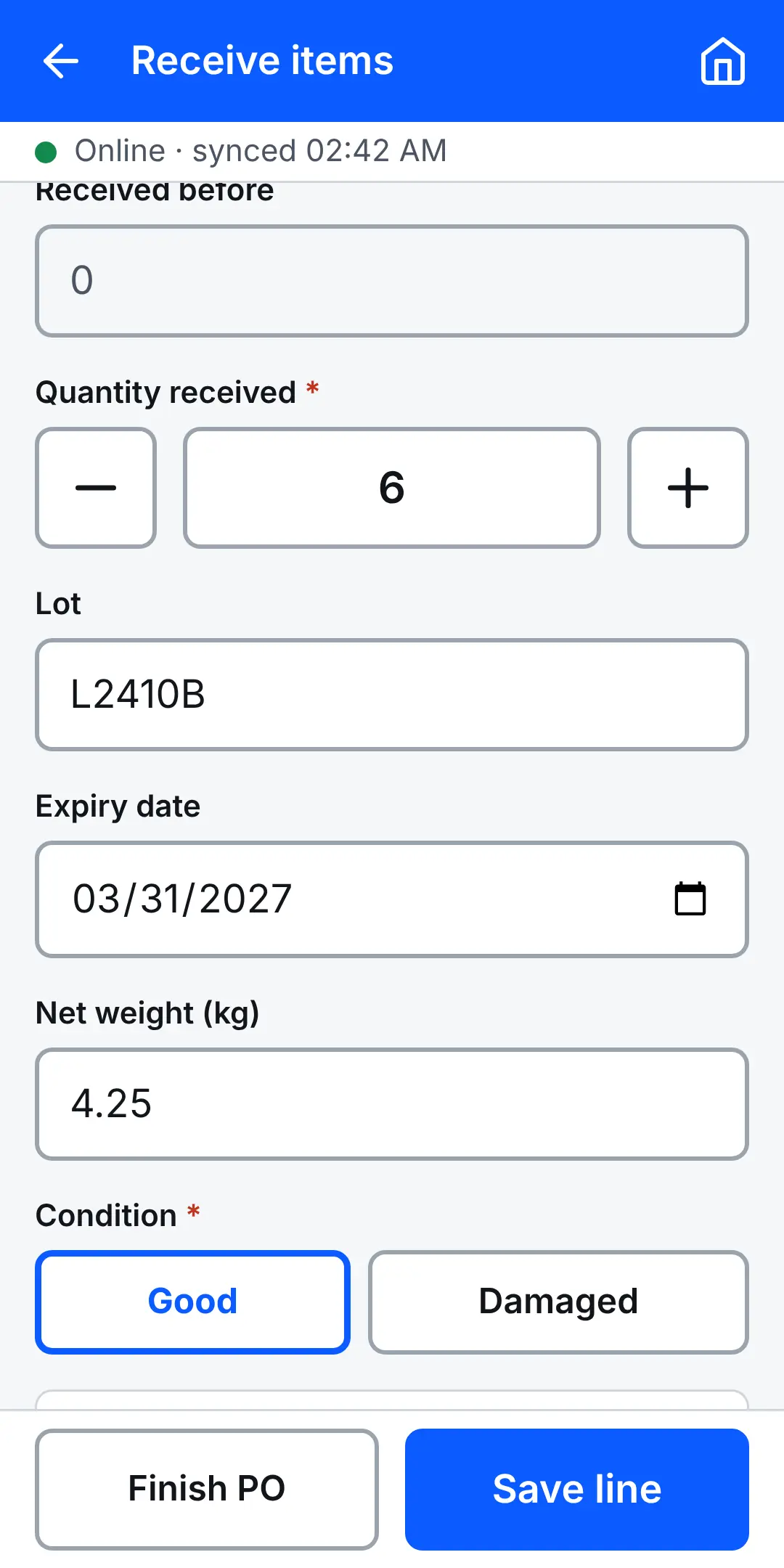
Receiving
Pick a purchase order, scan what arrived with quantities, and photograph any damage.
- Handheld
Order Picking
Pick an order, scan each line to confirm it, and give a reason for anything short.
- Handheld
Put-away / Location Move
Scan an item or pallet, then say where it is and where it goes; both locations are checked.
- Handheld
Shipping / Load Check
Scan a shipment, scan each pallet against its list, then the driver signs.
- Handheld
Asset Audit
Scan an asset tag to see its details, then record its condition, location and a photo.
- Handheld
RFID Locate
Pick an item and find its tag with a Zebra RFID reader — or by barcode on any device.
- Tablet
Visitor Sign-In
Visitors sign in with a photo, signature and safety agreement, and sign out when they leave.
- Tablet
Equipment Inspection
A forklift pre-shift check: pass or fail each item, photograph defects, sign, and get a PDF report.
- Handheld
Proof of Delivery
Pick a delivery, scan what is handed over, then the recipient signs and gets a PDF receipt.
- Test barcodes to print. One click gives a PDF of sample barcodes for every app that scans — shelves, items, product barcodes and GS1-128 case barcodes with lot, expiry and weight — to print on any office printer and scan straight away.
- Try before you publish. Preview runs a starter app with the real sample rows, on a phone or a tablet turned sideways.
- Your data when you’re ready. Point the app at your own spreadsheet, CSV file or database, and change anything about it like any other app.
A point-and-click designer for handheld apps
Studio runs as a Windows app on the server PC, or in a browser tab pointed at it. Everything is picked from lists and named in plain language.
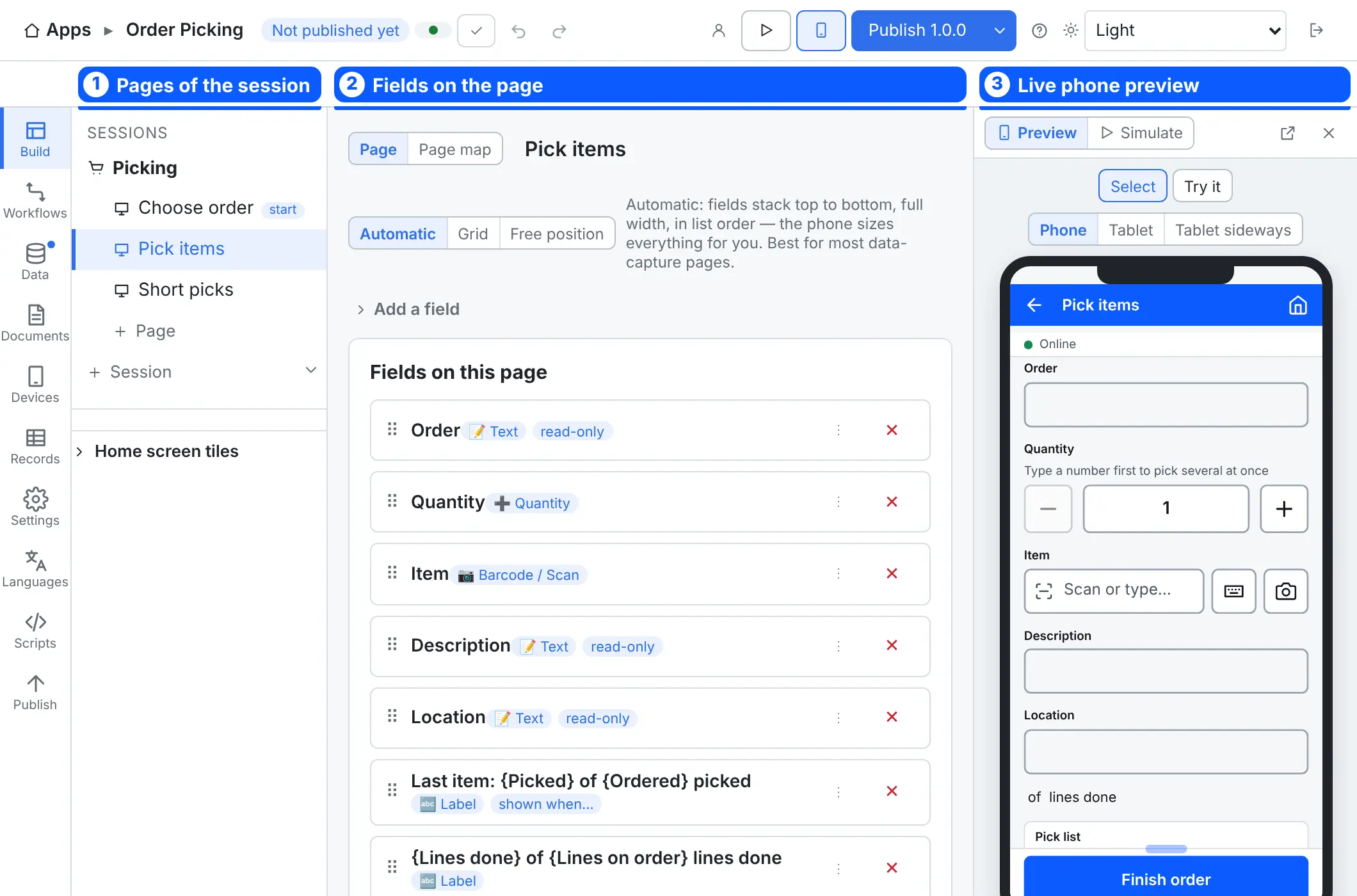
- Sessions and pages. Each job (Receiving, Picking, Count…) is a Home screen tile with its own pages and records table.
- 15 field types: text, notes, number, quantity, counter, calculated, checkbox, dropdown, lookup, date, time, barcode / scan, photo, signature and GPS location.
- Three layouts: automatic, grid, or free position in a page designer with layers, alignment and landscape layouts — for handhelds and tablets.
- Look & feel: your colors, font, button style, title bar, logo and sounds.
- Tabs, timers, data grids with filters, totals and colors, and record lists for review pages.
- Starter apps and a wizard to have a receiving, picking or count app running in minutes.
- Describe it, or ask for a change. The optional AI helper runs on your own PC. Describe a job in plain words and it drafts the session; ask it in a chat to add a field, rename a page or make a button send its data. You see every change first, and one Undo takes it all back.
- Bring your API’s documentation. Attach an OpenAPI (Swagger) file or a Postman collection to the description or the chat. Studio reads it in your browser, and the helper is given only the names of the endpoints you tick, never the file. It then sets up the web service and fills in the call from the endpoint, with values taken from the page’s fields of the same name. You set the sign-in yourself.
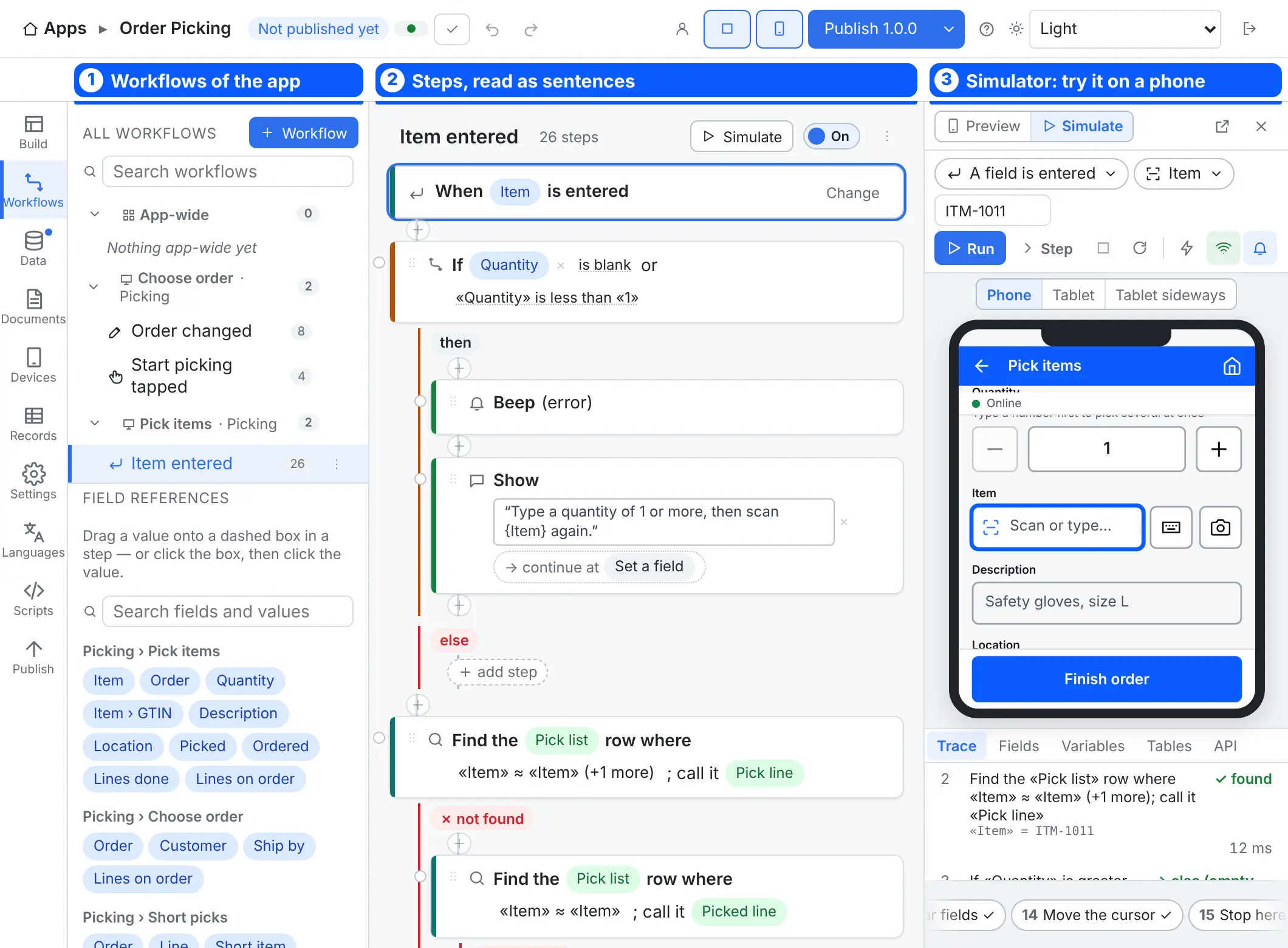
Workflows and the simulator
A workflow is when this happens, do these steps. Triggers include a scan, a button tap, a page opening or a sync finishing. Steps cover finding and changing rows, calling an API or a database command, sending email, branching with If…, showing messages, beeping, printing a document, filling a PDF form, and RFID, NFC and scale actions.
Press Simulate to run a workflow step by step on sample data, inspect fields, variables and tables, and rewind.
- Publish versions (1.0.0, 1.0.1…) after a checklist catches problems; roll back any time.
- Translate the app into several languages from one grid.
- Design documents such as pick lists, receipts and delivery notes, and fill your own PDF forms with the app’s values.
- Browse, correct and export captured records in a spreadsheet-style grid (CSV or Excel).
- Sandboxed JavaScript scripts for the rare rule no step covers.
The app your crews actually use
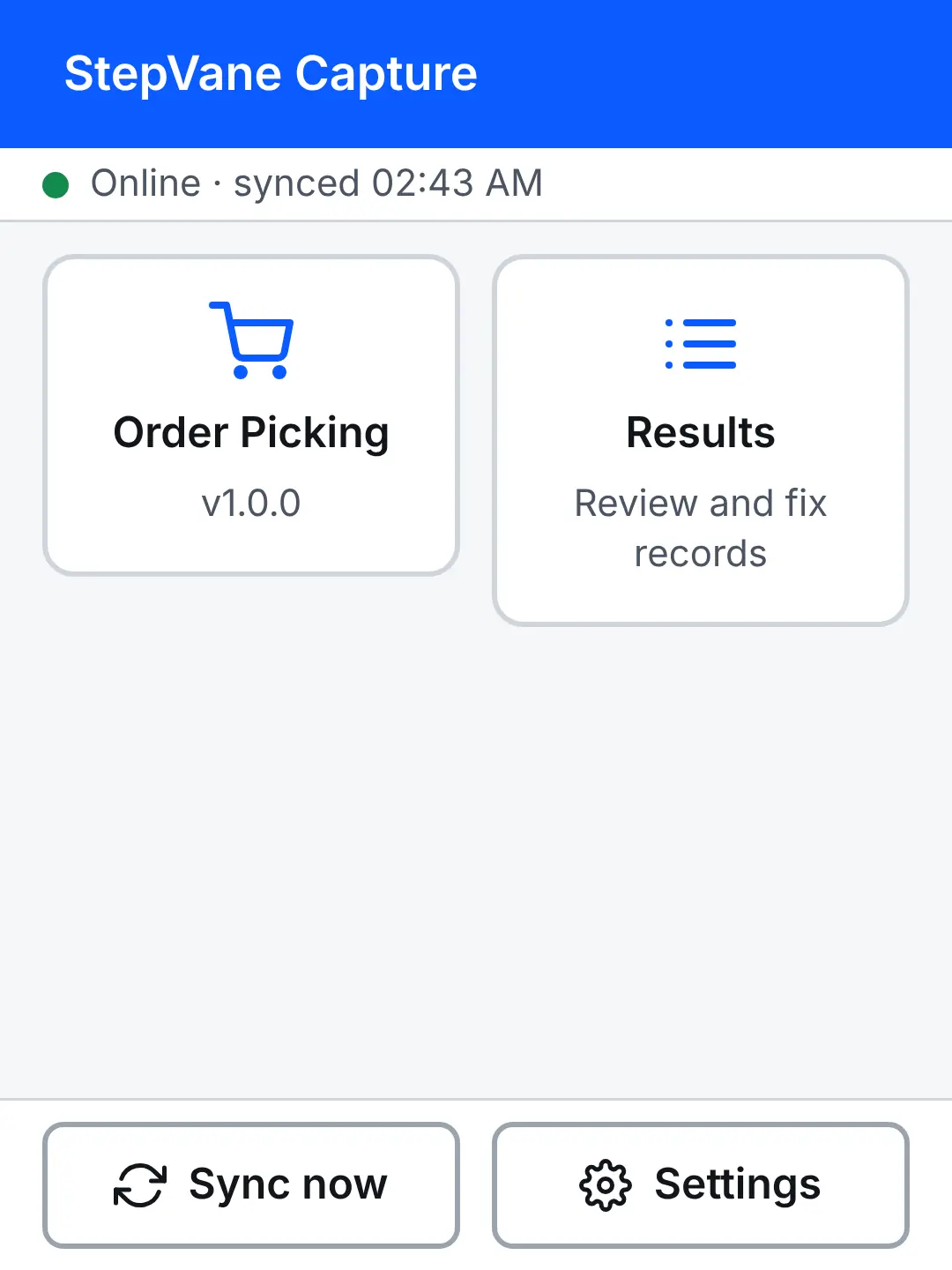
An Android app for phones and rugged handhelds, plus a browser version for a quick try. Built for gloves and sunlight.
- Installs straight from your PC. Studio shows a QR code; scan it with the phone to download the app from your own StepVane PC — no app store, no USB cable. Or push it with your MDM.
- 48 px touch targets, a big header and big buttons at the bottom.
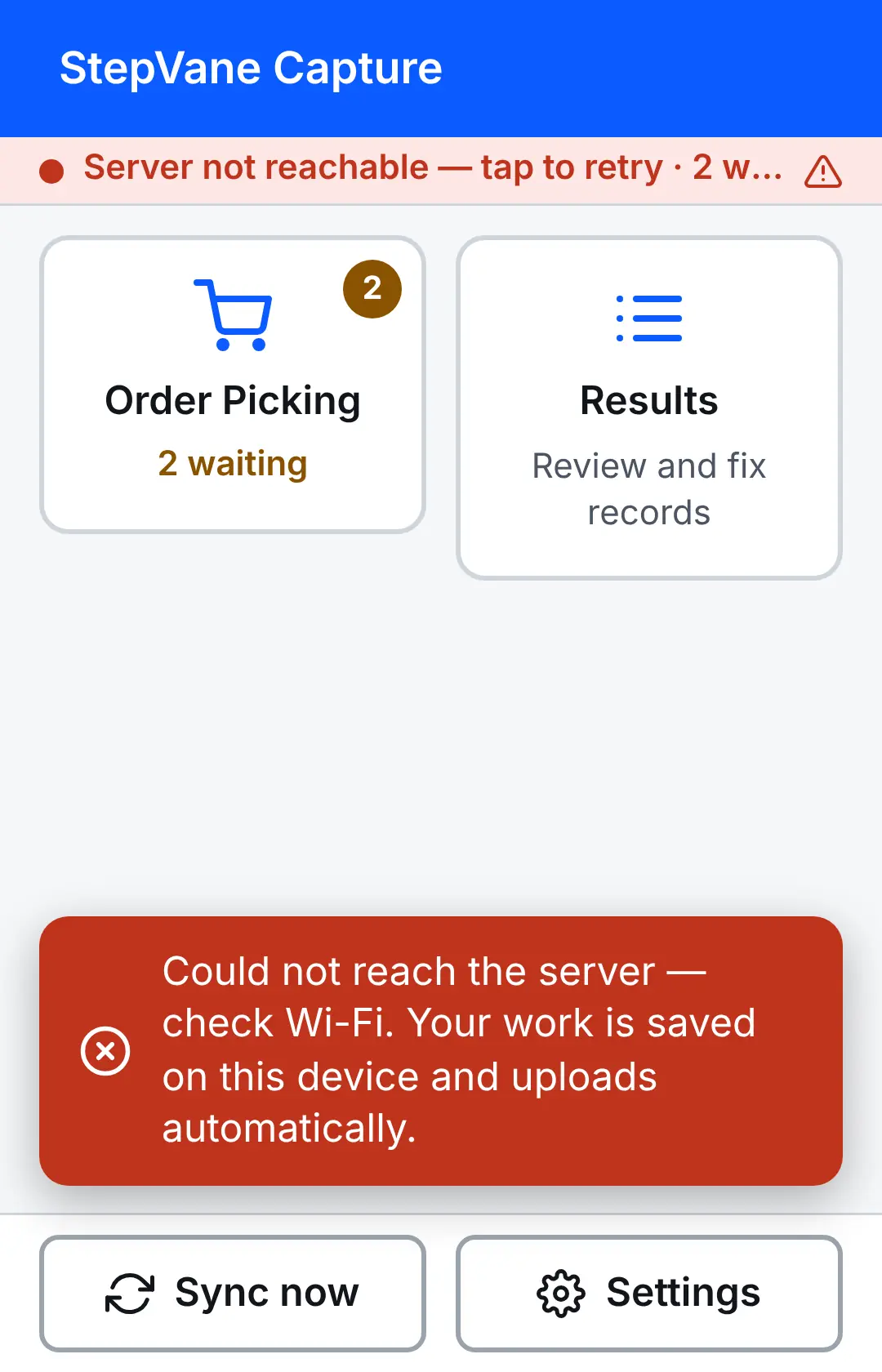
- A status strip on every page: online, synced, or how much is waiting.
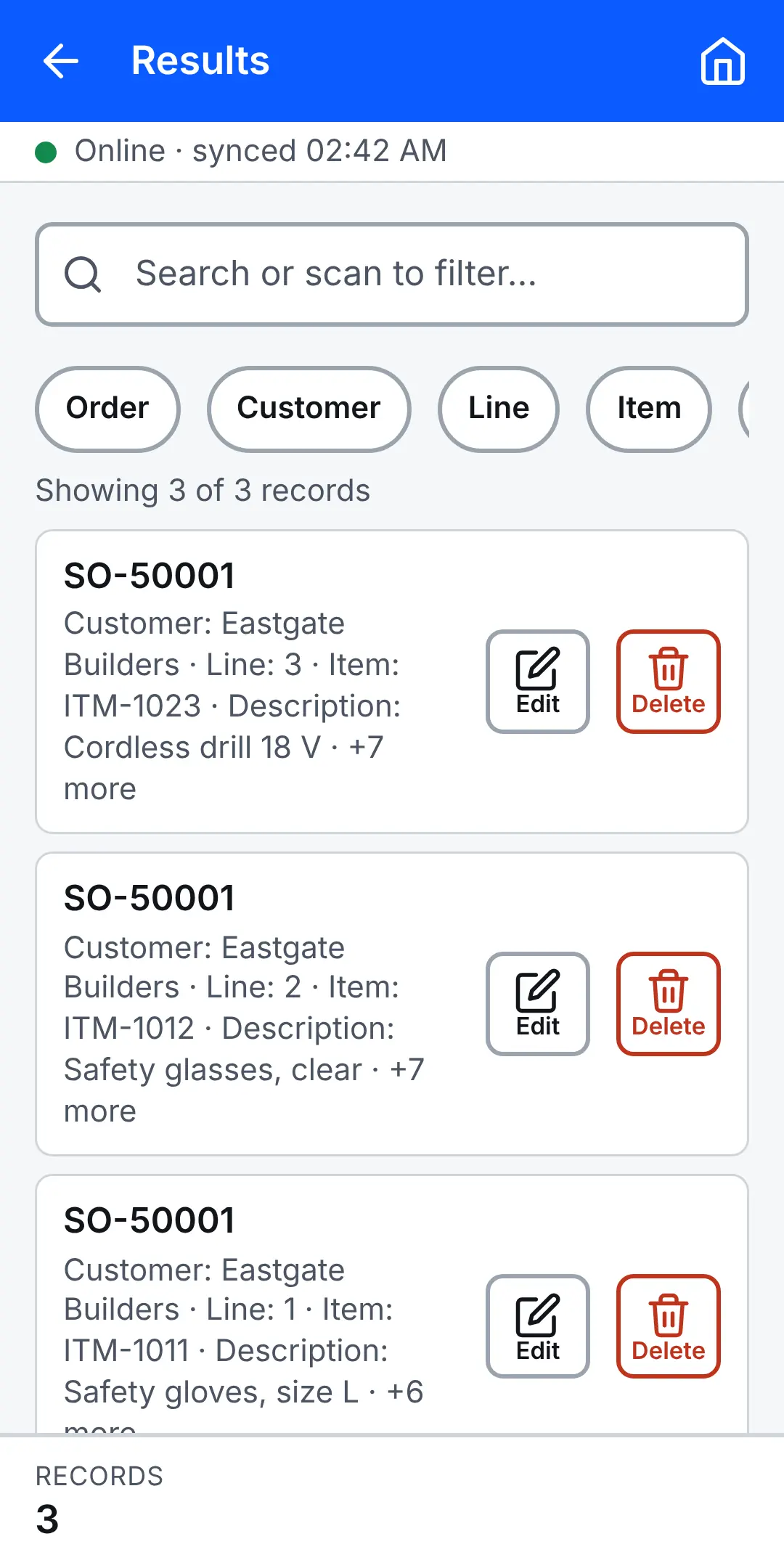
- A Home screen with one tile per session and a Results tile to review and fix saved records.
- Operators with PINs, a supervisor PIN and roles; idle sign-out.
- Kiosk mode locks the device to StepVane, optionally starting when the device turns on.
- Language, text size and high-contrast settings on each device.
- Photos, signatures and GPS location fields.
The browser version takes typed entry, keyboard-wedge scanners and the camera. Hardware scanner triggers, RFID, NFC, scales and kiosk mode need the Android app. See Download.
Every barcode on the dock, checked as it’s scanned
Each scan field says which barcode types it takes. A scan of another type is refused with the reason under the field, whether it came from the camera, a Zebra or a Honeywell scanner.
Line barcodes (1-D)
- Code 128
- GS1-128
- EAN-13
- EAN-8
- UPC-A
- UPC-E
- Code 39
- Code 93
- ITF / ITF-14
- Codabar
- GS1 DataBar (incl. Expanded)
2-D codes and tags
- QR code
- GS1 QR code
- Data Matrix
- GS1 DataMatrix
- PDF417
- Aztec
- MaxiCode
- RFID
Barcode parts: a case label becomes named fields
- GS1 labels split by themselves. A supplier’s GS1-128 case label carries the GTIN, lot, expiry date, net weight, serial number and more behind GS1 Application Identifiers. StepVane reads each one into a named part — Lot, Use by, Net weight (kg) — and can fill the page’s own fields with them.
- Dates and weights come out right. Dates become real dates, weights become numbers with the decimal point where the label puts it, and check digits are checked.
- Find the item either way. Look up items by GTIN: the product barcode (EAN-13) and the case label both find the same item.
- Any other layout too. Split your own codes at fixed positions, at a character such as
-, or with a pattern. - Every part can be its own column in Records and in your exports.
Works with the devices already on your dock
Barcode scanning
- Phone camera scanning
- Zebra handhelds through DataWedge — the profile is set up automatically
- Honeywell handhelds with a one-time setup
- Keyboard-wedge, ring and Bluetooth scanners
- Scanner tuning from Studio: trigger mode, picklist, timeouts
Zebra RFID
- Read one tag or many at once into a field
- Locate a tag with a find meter that beeps faster as you get closer
- Read tag memory, write a new EPC or user memory, and lock tags
- Zebra’s RFID SDK is built into the app (Android 10 or newer)
NFC and scales
- Read and write NFC tags
- Read the weight from a Bluetooth (serial) scale into a field
- Keyboard-mode RFID readers of other brands, one tag per read
Documents and PDF forms
- Receipts, pick lists and delivery notes that grow with their rows
- Printed from the handheld over Wi-Fi or Bluetooth, or through the print dialog
- Fill your own PDF forms — certificates, delivery notes — then view, print or email them
Kiosk and device settings
- Lock the device to the app, or fully as device owner
- Push scanner, printer and sync defaults to every device from Studio
- Lock the device’s settings behind a supervisor PIN
- Keep the screen awake during a shift
Install and pair in seconds
- Install the Capture app from your PC by scanning a QR code
- Pair by scanning a QR code with the camera or the handheld’s scanner
- Or type the server address and pairing code, or send a one-time pairing link
- Revoke a lost device instantly
Plug into the systems you already run
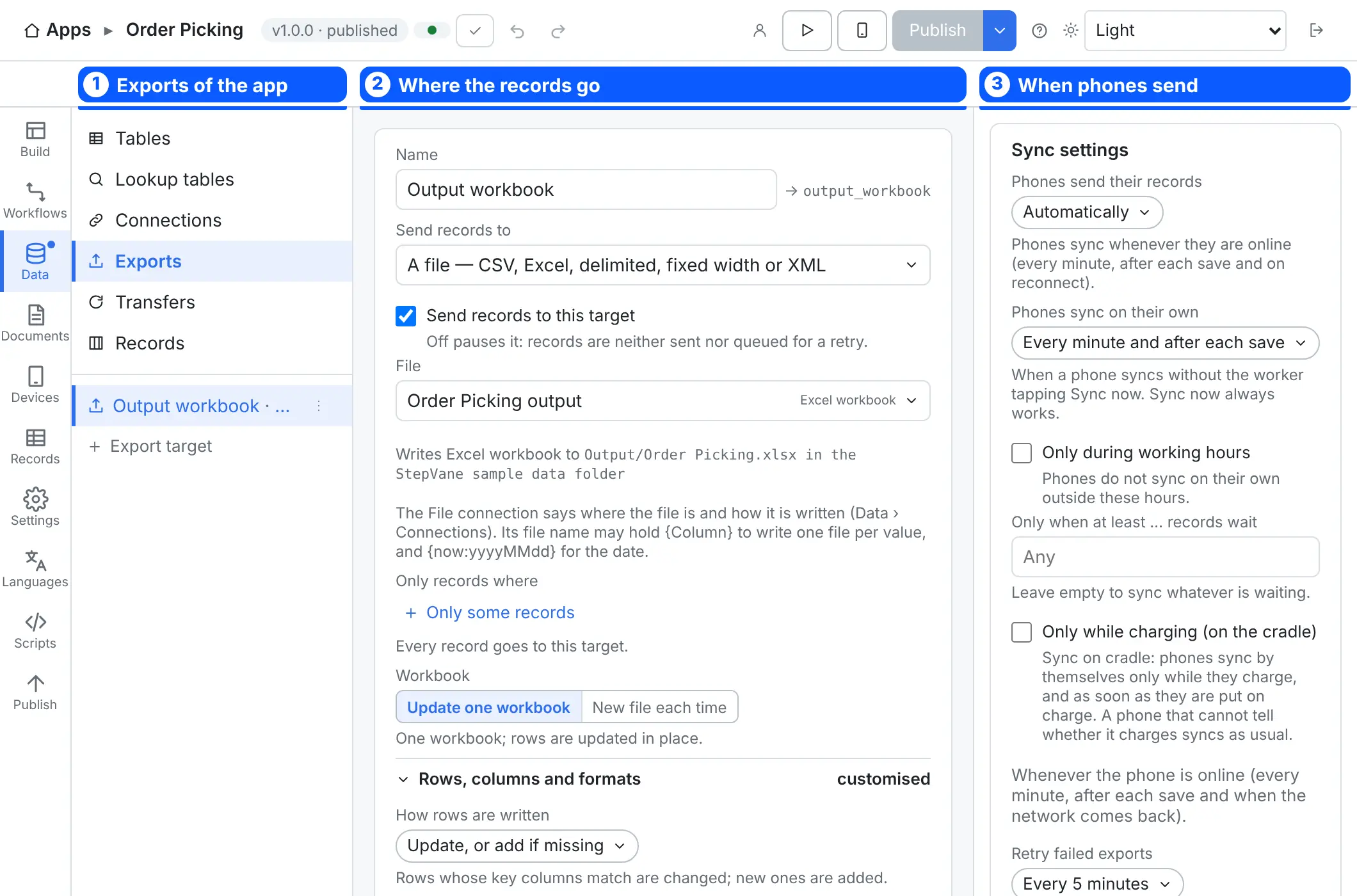
- Excel and file connections: read item lists from an Excel workbook or a CSV file on the PC or a network share, and write records back to a workbook, CSV, delimited, fixed-width or XML file — one file per site if you like.
- Databases: SQL Server, PostgreSQL and ODBC, registered on the server by name. Live SQL runs on the server; the phone never sees a query or connection string. Database commands run your stored procedures from a workflow.
- Smartsheet: fill a lookup list from a sheet, add or update a row from the phone, and send records to a sheet.
- Salesforce and any other web API — a WMS, an ERP — through web connections, with credentials kept on the server, including workers signing in on the handheld. Start from a curl command, a Postman collection or an OpenAPI file to fill in the address, the sign-in and the list of endpoints.
- Lookup tables refreshed on a schedule and kept on every phone, so scans are checked against your data even offline.
- Exports and transfers after every sync, on a schedule or on demand.
- Email from workflows, exports and transfers, sent through Microsoft 365, Exchange, Gmail or any mail server.
- REST API with API keys so other systems can read and write the app’s tables and start transfers.
Dead zones don’t stop the shift
Work is saved on the device first and uploads whenever the server can be reached. Workers see exactly how much is waiting.
- Choose when devices sync: automatically, on a schedule, only during working hours or only while charging.
- Run each device online, offline or automatic; download data for offline work.
- Records are checked on upload; a bad item is refused on its own and never blocks the rest.
- When two devices change the same record, the newest change wins (or the server’s copy, if you prefer) and the replaced copy is kept.
- Queued API calls and emails are sent at most once.
- Optional: off-site sync lets a phone that is away from the site sync through a relay you or your IT team host. It is off until you turn it on, nothing connects in to your PC, and what the relay carries is sealed end to end, so the relay cannot read it. How the relay works.
- Failed exports are listed in Studio to retry or discard, automatically if you choose.
No StepVane cloud. Your data stays on your PC unless you send it elsewhere.
The Windows PC running StepVane is the server. Devices pair and sync with it over your network, and there is no StepVane account to sign up for. StepVane checks stepvane.com for updates by itself. Beyond that, data leaves your network only when you choose it: when you connect an online service such as Smartsheet, Salesforce or a web API, or when you turn on off-site sync through a relay.
Secure HTTPS pairing
Everything between the phones and the PC is encrypted, with nothing to set up: StepVane makes its own certificate. A phone learns it when it pairs and from then on talks to that PC only. Pairing codes work once and expire in 10 minutes.
Secrets stay on the server
Connection passwords, API keys and tokens are encrypted (AES-256-GCM) on the server. Studio sees names only; a device never receives them, nor any SQL text.
Encrypted on the device
Offline data on the Android app is encrypted with a key in the Android Keystore. Device tokens are stored only as hashes; revoke a device in one click.
People and roles
Owners, admins and members in Studio; operators, supervisors and roles on the device. PINs are stored only as slow salted hashes.
Careful outbound calls
Calls to other systems go through the server with timeouts, size caps and no redirects; private addresses are refused unless an admin allows them.
Accountable records
Every record carries the operator who captured it and who last corrected it. Studio edits go through the same checks as a device upload.
Where your data can go
By default, nowhere: your apps and records stay on your PC and your devices. Data leaves your network only when you set up one of these.
| Off-site sync | Sealed, end-to-end encrypted messages pass through a relay that you, your IT team or a provider you trust hosts. The host of the relay can see which random ids talk, when, and how large the messages are, but not what is in them. How the relay works. |
|---|---|
| An online service you connect | Smartsheet, Salesforce, a web API, an email server or a database outside your network: the data the app sends there goes to that service and is handled under its own terms and privacy notice. StepVane sends only what you set up, through your own server. |
| Updates | The Windows app asks stepvane.com for the newest version. Nothing about your apps or records is sent. |
| The optional AI helper | Downloaded once, when an owner or admin asks for it. It then runs on your PC, and what you describe to it stays there. |
A server that looks after itself
StepVane runs on an ordinary Windows PC. It backs itself up, keeps running when nobody is signed in, and collects what support needs when something goes wrong.
Automatic backups
- Every day at 02:00 (or every few hours), keeping the newest 14
- Before every update, and whenever you click Back up now
- Each backup is read back and checked before it counts
- Save them to another drive or a network share, protected with a password
Runs as a Windows service
- Starts when the PC starts — after a power cut or a Windows update
- Phones keep syncing with nobody signed in to Windows
- If it ever stops, Windows starts it again
- Turn it on from the Devices menu with one administrator prompt
Crash reports and the support bundle
- Studio and the phones report every crash to the server by themselves
- Reports leave out what workers typed or scanned, PINs and passwords
- Save support bundle gathers what support needs into one file
- Captured work stays safe in the phone’s outbox through any crash
Try StepVane free
Studio, the server, one handheld and one worker cost nothing. Start a starter app this afternoon and scan with it before the end of the shift.